Showing posts sorted by date for query medical alert. Sort by relevance Show all posts

Tuesday, October 6, 2026

25 Technology Terms Every Senior Should Know

25 Technology Terms Every Senior Should Know

Affiliate Disclosure: This post contains affiliate links. As an Amazon Associate, I earn from qualifying purchases. If you purchase through a link on this page, I may earn a commission at no additional cost to you.

Technology becomes less intimidating when you understand the words people use to describe it.

Terms such as Wi-Fi, Bluetooth, cloud storage, streaming, apps, updates, and two-factor authentication appear everywhere.

The problem is that instructions often use these words without explaining what they mean.

A senior might hear, “Connect the device to Wi-Fi, open the app, pair it through Bluetooth, and save the file to the cloud.”

That sentence sounds simple to someone who already understands the terms. To a beginner, it might sound like a foreign language with a monthly subscription.

This guide explains 25 common technology terms in plain English. Each definition includes a simple example and a practical reason the term matters.

Quick Learning Tips

  • Learn a few terms at a time.
  • Practice each term on a real device.
  • Write unfamiliar words in a notebook.
  • Ask someone to explain the term using an example.
  • Do not pretend you understand when you do not.
  • Ask for instructions without technical language.
  • Return to this glossary whenever a word feels confusing.

1. App

An app is a program that performs a specific task on a phone, tablet, computer, smart television, or other device.

The word “app” is short for application.

Examples

  • Phone app for making calls
  • Messages app for sending texts
  • Camera app for taking pictures
  • Banking app for managing an account
  • Weather app for checking forecasts
  • Video-calling app for speaking with family
Simple Definition: An app is a tool inside your device.

Read: Essential Apps for Seniors .

2. Browser

A browser is the program used to visit websites.

Common browsers include Chrome, Safari, Edge, and Firefox.

A browser lets you type a website address, search the internet, open links, read articles, watch videos, and use online services.

Simple Definition: A browser is the door you use to enter the internet.

3. Wi-Fi

Wi-Fi connects devices to the internet without using a cable.

A home router sends the wireless signal. Phones, tablets, computers, televisions, cameras, and smart devices connect to that signal.

Wi-Fi usually requires

  • Internet service
  • A modem or router
  • A network name
  • A Wi-Fi password
Safety Tip: Public Wi-Fi at stores, hotels, airports, and restaurants is less private than your protected home network.

4. Bluetooth

Bluetooth connects nearby devices without a cable.

It usually works across a short distance.

Common Bluetooth connections

  • Phone to hearing aids
  • Phone to wireless headphones
  • Phone to a car
  • Tablet to a keyboard
  • Health monitor to a mobile app
  • Phone to a smart speaker
Simple Definition: Bluetooth lets nearby devices talk to each other.

5. Internet

The internet is the worldwide network that connects computers, phones, websites, apps, services, and people.

It supports email, video calls, websites, online banking, shopping, streaming, social media, maps, and many smart-home devices.

Wi-Fi is one method used to connect a device to the internet. Wi-Fi and the internet are related, but they are not the same thing.

6. Mobile Data

Mobile data connects a phone or cellular tablet to the internet through a mobile carrier.

It works when Wi-Fi is unavailable, provided the device has cellular coverage and an active plan.

Activities that use mobile data

  • Browsing websites
  • Watching videos
  • Using maps
  • Video calling
  • Downloading files
  • Using social media
Cost Tip: Video and large downloads use more mobile data than simple text messages or email.

7. Cloud Storage

Cloud storage saves files on computers operated by an online service instead of keeping everything only on your device.

Photos, contacts, documents, and backups might be stored in the cloud.

Examples

  • Google Drive
  • Apple iCloud
  • Microsoft OneDrive
  • Dropbox
Simple Definition: Cloud storage saves information online so it can be reached from another approved device.

8. Download

Download means moving a file, app, picture, document, or other information from the internet onto your device.

Examples

  • Installing an app
  • Saving a photograph
  • Saving a PDF document
  • Downloading a software update
  • Saving an email attachment
Safety Warning: Do not download files or apps from unexpected messages or unfamiliar websites.

9. Upload

Upload means sending a file from your device to a website, app, online service, or another person.

Examples

  • Posting a photograph on Facebook
  • Adding a document to cloud storage
  • Sending an image through a website form
  • Adding a video to YouTube
  • Submitting a file to an online account
Memory Trick: Download brings something down to your device. Upload sends something up to the internet.

10. Streaming

Streaming means watching or listening to content through the internet without permanently saving the complete file first.

Examples

  • Watching YouTube
  • Watching a movie service
  • Listening to internet radio
  • Playing a podcast
  • Watching a live event online

Streaming requires a steady internet connection and might use a large amount of mobile data.

Read: How to Use YouTube for Learning and Entertainment .

11. Online Account

An online account stores your information and settings for a website, app, store, bank, email service, or other digital service.

An account usually requires a username or email address and a password.

Safety Tip: Create accounts only through official websites and apps.

12. Username

A username identifies you when signing into an online account.

Some services use an email address as the username. Others let you create a separate name.

A username is different from a password. The username identifies the account. The password protects it.

13. Password

A password is a secret combination of letters, numbers, and symbols used to protect an account or device.

Strong password rules

  • Use a different password for every important account.
  • Make passwords long.
  • Avoid names, birthdays, and simple number patterns.
  • Do not send passwords through text messages.
  • Do not share passwords with unexpected callers.
  • Store passwords securely.
Do Not Reuse: One stolen password should not give a criminal access to every account you own.

14. Two-Factor Authentication

Two-factor authentication adds a second security step after entering a password.

The second step might use:

  • A code sent to your phone
  • An authentication app
  • A fingerprint
  • Face recognition
  • A security key

This protects the account when someone steals or guesses the password.

Simple Definition: Two-factor authentication means proving your identity in two different ways.

15. Verification Code

A verification code is a temporary number used to confirm your identity.

It might arrive through a text message, email, phone call, or authentication app.

Never Share It: Anyone asking you to read a verification code over the phone might be trying to enter your account.

16. Software Update

A software update installs improvements, security repairs, new features, and error fixes.

Phones, tablets, computers, apps, televisions, routers, and smart devices receive updates.

Before a major update

  • Connect the device to power.
  • Use trusted Wi-Fi.
  • Back up important information.
  • Allow enough time.
  • Use the device settings or official app store.

17. Notification

A notification is a message or alert from an app, device, website, or service.

Notifications might announce:

  • New text messages
  • Missed calls
  • Appointment reminders
  • Package deliveries
  • Weather warnings
  • Security alerts
  • Software updates

Too many notifications create confusion. Turn off alerts from apps that do not matter.

A link is clickable text, a button, or an image that opens another webpage, app, file, or location.

Links appear in websites, emails, text messages, social media posts, and online advertisements.

Safety Warning: Do not open unexpected links from strangers or alarming messages.

19. Spam

Spam is unwanted communication sent through email, text messages, phone calls, social media, or online comments.

Some spam is advertising. Some contains scams, harmful links, or fake offers.

What to do

  • Do not reply to suspicious messages.
  • Block the sender.
  • Use the report-spam or report-junk feature.
  • Do not open attachments.
  • Do not click unknown links.

20. Phishing

Phishing is an attempt to steal private information by pretending to represent a trusted company, person, or organization.

A phishing message might pretend to come from:

  • A bank
  • A delivery company
  • A government agency
  • A technology company
  • A family member
  • A streaming service

The message often asks you to click a link, sign in, confirm payment, or send a code.

Memory Trick: Phishing means someone is fishing for your information.

21. Scam

A scam is a dishonest plan used to steal money, information, account access, or property.

Common scams targeting seniors

  • Fake bank alerts
  • Family emergency scams
  • Government impersonation
  • Gift card demands
  • Romance scams
  • Fake delivery messages
  • Remote computer support scams
  • Prize and lottery scams

Read: How to Protect Seniors From Text Message Scams .

22. Privacy Settings

Privacy settings control which information apps, websites, devices, and other people are allowed to access.

Privacy settings might control

  • Location access
  • Camera access
  • Microphone access
  • Contact access
  • Photo access
  • Advertising tracking
  • Who sees social media posts
  • Who can call or message you

Review privacy settings after installing new apps and after major updates.

23. GPS

GPS is a location system used by phones, maps, vehicles, medical alerts, smartwatches, and tracking devices.

GPS helps with:

  • Driving directions
  • Finding a lost phone
  • Locating a medical alert user
  • Sharing location with family
  • Tracking outdoor movement
Privacy Tip: Share your location only with people and services you trust.

24. Smart Device

A smart device connects to the internet, an app, another device, or a home network.

Examples

  • Smartphone
  • Smartwatch
  • Smart television
  • Smart speaker
  • Smart doorbell
  • Smart lock
  • Smart light bulb
  • Smart health monitor

Smart devices often require Wi-Fi, an app, an account, updates, and regular maintenance.

Read: The Simple Senior Home Security Plan .

25. Artificial Intelligence

Artificial intelligence, often called AI, is technology that performs tasks associated with human thinking.

AI tools might answer questions, recognize speech, organize information, suggest words, summarize text, create images, or help control devices.

Seniors might use AI to

  • Explain confusing terms
  • Write messages
  • Create lists
  • Plan meals
  • Organize questions
  • Learn technology
  • Prepare for appointments
  • Create reminders and schedules
Important: AI sometimes gives incorrect answers. Verify important health, financial, legal, safety, and account information.

Read: How to Use AI to Make Daily Life Easier .

You should also read: How Seniors Can Stay Safe When Using AI .

Technology Terms Practice Sheet

Match the Term to the Meaning

1. A program used on a phone or tablet: __________________

2. A wireless connection to home internet: ______________

3. A secret used to protect an account: _________________

4. A short-range connection between nearby devices: _____

5. Watching video through the internet: _________________

6. Saving information on an online service: _____________

7. A message designed to steal account information: _____

8. Sending a file from your device to the internet: _____

9. A second step used to protect an account: ____________

10. A location system used for maps and tracking: ________

My Personal Technology Glossary

New term: __________________________________________

What it means: _____________________________________

Where I saw it: ____________________________________

Simple example: ____________________________________

Person I can ask for help: __________________________

Words I Want to Practice

1. _________________________________________________

2. _________________________________________________

3. _________________________________________________

4. _________________________________________________

5. _________________________________________________

Quick Technology Glossary

Term Simple Meaning
App A program that performs a task
Browser A program used to visit websites
Wi-Fi A wireless connection to the internet
Bluetooth A short-range connection between devices
Cloud Online storage for files and backups
Download Bring a file onto your device
Upload Send a file to an online service
Streaming Watch or listen through the internet
Phishing A fake message seeking private information
AI Technology that performs thinking-related tasks

Frequently Asked Questions

Do seniors need to memorize every technology term?

No. The goal is to understand enough to follow instructions and ask better questions. Keep a glossary nearby.

What is the difference between Wi-Fi and the internet?

The internet is the worldwide network. Wi-Fi is one wireless method used to connect a device to it.

What is the difference between downloading and uploading?

Downloading brings information onto your device. Uploading sends information from your device to an online service.

Is Bluetooth the same as Wi-Fi?

No. Bluetooth usually connects nearby devices. Wi-Fi usually connects devices to a home or public internet network.

What does the cloud mean?

The cloud means information is stored through an online service instead of only on your phone, tablet, or computer.

What is the most important security term to understand?

Verification code is one of the most important. Never give a temporary security code to an unexpected caller or message sender.

How should seniors learn new technology words?

Learn one term, see it on a real device, write a simple definition, and practice using it in a sentence.

Final Thoughts

Technology becomes easier when the language becomes familiar.

You do not need to memorize every technical term in one day.

Start with the words you see most often. Learn what they mean. Practice them on your phone, tablet, computer, television, or smart device.

Ask questions when instructions feel confusing. Request plain language. Write down the answer.

Nobody was born knowing what Bluetooth, streaming, cloud storage, phishing, or two-factor authentication meant.

Technology is learned one term and one task at a time.

Keep Learning One Step at a Time

Visit the Senior Tech Simplified Start Here page for beginner guides covering smartphones, apps, AI, online safety, health devices, and smart-home technology.

Visit the Start Here Page

Home-Based Elder Care Logistics: The Caregiver's Guide

 🏠 Caring for Mom or Dad at Home? This Practical Guide Will Help You Do It Safely

Home-Based Elder Care Logistics: Navigating Medical Supplies and Safety Modifications for Caregivers

Home-Based Elder Care Logistics guide for family caregivers featuring elder care planning, home safety modifications, medical supplies, medication management, emergency planning, and caregiver resources.

If you're an adult child caring for an aging parent, you already know it's about more than love and patience. It's a logistics job.

One week you're figuring out which shower chair to buy. The next you're on hold with Medicare about a walker. Then you're counting adult briefs at 9 p.m. and realizing you'll run out before the next delivery. Meanwhile, you're wondering whether that throw rug in the hallway is an accident waiting to happen.

Most caregivers learn all of this the hard way, one crisis at a time. It doesn't have to be.

That's why Senior Tech Simplified created Home-Based Elder Care Logistics. It's a 33-page printable guide that brings everything together in one place: planning, home safety, medical supplies, medications, emergencies, and self-care.

👉 Get the guide now: https://stan.store/sgm1225


💡 Who Is This Guide For?

If you've ever said:

✅ "Mom wants to stay in her home, but I'm worried she'll fall."
✅ "I don't know what Medicare covers and what we have to pay for."
✅ "My siblings want to help, but nobody knows who's doing what."
✅ "I keep running out of supplies at the worst possible time."
✅ "Dad just came home from the hospital, and I have no idea where to start."

That's why we made this guide.

It's written in plain language for everyday families, not medical professionals. You don't need any special background. You just need to want your parent safe, comfortable, and independent at home for as long as possible.


📘 What's Inside the Guide

The guide is organized into 10 easy-to-follow sections. You don't have to read it cover to cover. Jump to whatever you need today.

🧭 Section 1: Getting Started

Learn the four pillars of home-based care: Plan, Adapt, Supply, and Prepare. You'll also learn why the most important first step is understanding your parent's needs, not buying equipment. Includes tips for talking with your parent about changes in a way that protects their dignity.

📋 Section 2: Elder Care Planning Guide

A step-by-step roadmap to building a real care plan:

  • How to assess everyday abilities, using the same terms doctors and agencies use (ADLs and IADLs)
  • How to run a family care meeting and divide roles fairly, even among siblings who live far away
  • The essential legal documents every family should have, and why timing matters
  • A clear overview of how care gets paid for: Medicare, Medicare Advantage, Medicaid, VA benefits, long-term care insurance, and private pay
  • What to include in your written care plan

🏡 Section 3: How to Adapt the Home for Seniors

Falls are the leading cause of injury for older adults, and most happen at home. This section walks you through a room-by-room safety assessment: entryways, living areas, stairs, bathrooms, bedrooms, and kitchens. For each room, you get common hazards and practical fixes. You'll also learn how to decide what to fix first, plus special guidance for parents living with memory loss or dementia.

🔨 Section 4: Aging-in-Place Home Modifications

From a $15 night light to a full bathroom remodel, this section sorts home changes into three tiers: quick fixes, moderate changes, and major renovations. You'll also find:

  • A handy chart of key measurements for grab bars, ramps, doorways, toilet height, handrails, and water heater temperature
  • Detailed modification ideas for the bathroom (the highest-risk room), bedroom, kitchen, and entrances
  • Lighting, flooring, and smart home technology that supports independence
  • How to hire the right contractor and avoid home repair scams that target seniors
  • What to do if your parent rents instead of owns

🩺 Section 5: Navigating Medical Supplies and Equipment

This is the section most caregivers wish they'd had from day one:

  • The difference between durable medical equipment, mobility aids, consumable supplies, and monitoring devices
  • How to get equipment through insurance and what to ask before you rent or buy
  • A simple reorder-point formula, with a worked example, so you never run out of supplies again
  • How to set up a supply station any caregiver can use
  • Routine safety checks for walkers, wheelchairs, hospital beds, patient lifts, and oxygen

💊 Section 6: Medication Management

How to build a master medication list, why a yearly "brown bag" review matters, and how to use pill organizers and automatic dispensers. Also covers safe storage and disposal.

🚨 Section 7: Emergency Preparedness

  • What to put in an emergency binder and where to keep it so paramedics can find it
  • How to plan for falls, including medical alert systems and when to call 911
  • Power outage plans for families who rely on oxygen or powered equipment
  • Smoke and carbon monoxide safety
  • The questions to ask before a hospital discharge

❤️ Section 8: Caring for the Caregiver

Caregiving is a marathon, not a sprint. Learn the warning signs of burnout, how to find respite care and support groups, how to ask for help that actually helps, and how to spot signs of elder abuse or financial exploitation.

📞 Section 9: Resources and Where to Get Help

A directory of national helplines and organizations, including the Eldercare Locator, Medicare, free benefits screening tools, dementia support, respite care, and veteran caregiver programs. It also lists the professionals who can help, from occupational therapists to elder law attorneys.

🖨️ Section 10: Printable Worksheets and Checklists

Print these pages and keep them in your care binder:

  • 🏠 Home safety checklist (room by room)
  • 📦 Supply inventory tracker
  • 🔧 Equipment log
  • 💊 Master medication list
  • ☎️ Emergency contacts sheet
  • 📅 Weekly care schedule
  • 📝 Care plan review notes

🧓 Why This Guide Is Different

  • Plain language. No confusing medical jargon.
  • Organized for real life. Start wherever your biggest worry is today.
  • Practical tools. It doesn't just explain what to do. It gives you checklists and trackers to do it.
  • Designed to print. Easy-to-read layout with fill-in worksheets.
  • Made for families. Written for sons, daughters, and family members, not professionals.

🛒 Get Your Copy Today

Home-Based Elder Care Logistics is a 33-page printable PDF guide, available now for just $7.

Cover of the Home-Based Elder Care Logistics PDF guide by Senior Tech Simplified, with a navy and cream design, a line drawing of a house, and the subtitle "Navigating medical supplies and safety modifications for an aging parent at home."

👉 Get the guide here: https://stan.store/sgm1225

When you get to the store, look for Home-Based Elder Care Logistics. You'll receive the PDF in your inbox right after purchase. Print the worksheets and share the guide with your siblings so everyone is working from the same plan.

While you're there, check out my other senior-friendly guides, including EV Made Easy: The Senior's Guide to Electric Cars.


💬 Join the Conversation

You don't have to figure out caregiving alone. Join the Senior Tech Simplified Facebook group to ask questions, share what's worked for your family, and connect with other caregivers:

👉 https://www.facebook.com/groups/656955780226922

👇 Comment below: What's the biggest challenge you're facing in caring for a parent at home? Is it home safety, medical supplies, paperwork, or finding time for yourself? Let's talk about it.

🛒 Ready to get started? Download your copy of Home-Based Elder Care Logistics here: https://stan.store/sgm1225

This guide is for general education and doesn't replace advice from your parent's doctors, therapists, attorney, or financial professionals.

#SeniorTechSimplified #ElderCare #FamilyCaregiver #AgingInPlace #CaregiverTips #AgingParents #HomeSafetyForSeniors #FallPrevention #CaregiverSupport #ElderCarePlanning #SeniorSafety #PrintablesForCaregivers #SandwichGeneration


Tuesday, September 22, 2026

The Best Voice Assistants for Seniors Living Alone

The Best Voice Assistants for Seniors Living Alone

Affiliate Disclosure: This post contains affiliate links. As an Amazon Associate, I earn from qualifying purchases. If you purchase through a link on this page, I may earn a commission at no additional cost to you.

A voice assistant lets a senior control certain technology by speaking instead of tapping small buttons or searching through complicated menus.

A senior might ask for the weather, set a reminder, play music, hear the news, start a timer, call a family member, or control compatible lights.

For someone living alone, those features offer more than convenience. They support communication, routine, confidence, and independence.

The wrong device creates frustration. The right device fits the senior’s phone, home, hearing needs, internet connection, and daily habits.

This guide compares voice assistants, smart speakers, and smart displays for seniors living alone. It also explains what families should check before buying and how to set up the device safely.

Quick Answer

  • A smart display works well for video calls and visual reminders.
  • A smart speaker works well for music, timers, weather, and voice commands.
  • Choose a device that fits the senior’s existing phone and services.
  • Set up contacts, reminders, volume, and privacy controls before leaving.
  • Write down simple commands the senior can practice.
  • Keep a regular telephone available as a backup.
  • Do not depend on a voice assistant as the only emergency system.

What Is a Voice Assistant?

A voice assistant is software that responds to spoken questions and commands.

It might operate through a smart speaker, smart display, smartphone, tablet, television, or other connected device.

The senior says a wake word, followed by a request.

“Set a timer for 20 minutes.”
“Remind me to call my daughter at 6:00.”
“Turn on the bedroom light.”

The voice assistant then answers the question or performs the supported action.

How Voice Assistants Help Seniors Living Alone

1. Easier communication

Smart displays and compatible speakers help seniors call family members without searching through a contact list.

2. Daily reminders

Seniors can set reminders for medication, appointments, meals, phone calls, trash pickup, and household tasks.

3. Timers and alarms

Voice-controlled timers help with cooking, laundry, exercises, naps, and medication schedules.

4. Smart-home control

Compatible lights, plugs, televisions, thermostats, locks, and cameras might be controlled through voice commands.

5. Entertainment

Seniors can play music, radio stations, podcasts, audiobooks, and supported videos.

6. Everyday information

A voice assistant helps with weather, basic questions, spelling, calculations, calendar information, and general news.

7. Less dependence on small screens

Voice control helps people who struggle with small buttons, menus, keyboards, vision, arthritis, or limited dexterity.

Read: 5 Digital Assistant Tools That Help Seniors Stay Independent .

What to Check Before Buying a Voice Assistant

Internet connection

Most smart speakers and smart displays require reliable Wi-Fi.

Smartphone requirement

Setup often requires a compatible smartphone app and user account.

Existing services

A senior already using an iPhone, Android phone, Amazon account, or Google account might find one system easier than another.

Speaker volume

Confirm the device sounds clear enough for the senior’s hearing needs.

Screen or no screen

A display helps with video calls, photos, clocks, recipes, and visual reminders. A speaker-only device is smaller and simpler.

Family support

Someone should remain available to help with updates, passwords, Wi-Fi problems, contacts, and new settings.

Buying Rule: Choose the system that fits the senior’s current technology. Do not force someone into a completely new system because the device looks impressive.

1. Amazon Echo Show 5

The Echo Show 5 combines a voice assistant with a small display.

The screen supports visual information, compatible video calls, reminders, photos, and smart-home controls.

Best for

  • Seniors who want video calling
  • Families who share photos
  • People who prefer visual reminders
  • Smart-home users
  • Music, news, timers, and weather

Amazon Echo Show 5

Amazon Echo Show 5 smart display designed for Alexa

The Echo Show 5 is a compact smart display designed for Alexa services. It supports voice commands, compatible video calling, reminders, music, and smart-home controls.

View the Echo Show 5

2. Amazon Echo Dot

The Echo Dot is a speaker-only voice assistant.

It works well for seniors who want simple voice commands without another screen.

Best for

  • Music and radio
  • Timers and alarms
  • Weather and simple questions
  • Voice-controlled smart-home devices
  • Bedrooms, kitchens, and small rooms

Amazon Echo Dot

Amazon Echo Dot smart speaker designed for Alexa

The Echo Dot is a compact smart speaker designed for Alexa voice commands, music, timers, information, and compatible smart-home control.

View the Echo Dot

3. Google Nest Mini

The Google Nest Mini is a compact speaker designed around Google’s voice-assistant services.

It fits seniors already using Android phones, Google accounts, Google Calendar, or other Google services.

Best for

  • Google users
  • Timers and reminders
  • Music and information
  • Compatible smart-home controls
  • Simple voice questions

Google Nest Mini

Google Nest Mini compact voice assistant speaker

This Nest Mini listing includes a compact Google voice-assistant speaker with a US power adapter.

View the Google Nest Mini

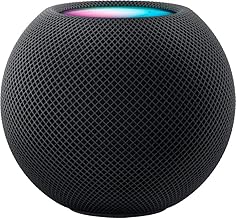
4. Apple HomePod Mini

The Apple HomePod Mini fits seniors already using an iPhone, iPad, Apple Music, or other Apple services.

Staying inside one technology system often makes setup and daily use easier.

Best for

  • iPhone and iPad users
  • Apple household services
  • Music and spoken commands
  • Compatible smart-home controls
  • Families already familiar with Apple setup

Apple HomePod Mini

Apple HomePod Mini smart speaker in black

The HomePod Mini is a compact Apple smart speaker designed to work with supported Apple services and devices.

View the HomePod Mini

Keep a Regular Phone Available

A voice assistant should not replace every other communication device.

Wi-Fi fails. Power outages happen. Accounts stop connecting. Smart speakers sometimes misunderstand commands.

Keep a reliable telephone available as a backup.

Serene Innovations Big-Button Phone

Amplified big-button landline phone with photo buttons for seniors

This amplified landline phone includes large buttons and photo buttons designed for easier calling.

View the Big-Button Phone

How Families Should Set Up a Voice Assistant

Do not plug the device in, create an account, and leave.

Complete the full setup while the senior is present.

  1. Connect the device to Wi-Fi.
  2. Install the correct phone app.
  3. Create or connect the user account.
  4. Increase speaker volume.
  5. Add important contacts.
  6. Test supported calling features.
  7. Set one reminder together.
  8. Set one timer together.
  9. Connect only the smart-home devices the senior needs.
  10. Review privacy settings.
  11. Write down five useful commands.
  12. Test the device from the senior’s normal chair or bed.
Setup Rule: Let the senior speak every command during practice. Watching someone else use the device does not build confidence.

Visit the Stay Connected Guide for more help with video calling, messaging, and family communication.

Useful Voice Commands for Seniors

Reminders

“Remind me to take my evening medication at 7:00.”

“Remind me to call my son tomorrow morning.”

Timers

“Set a timer for 15 minutes.”

“Set a laundry timer for 45 minutes.”

Communication

“Call my daughter.”

“Start a video call with my family.”

Information

“What is the weather today?”

“What time is it?”

“Spell the word appointment.”

Smart-Home Control

“Turn on the bedroom light.”

“Turn off the living room lamp.”

Entertainment

“Play relaxing music.”

“Play my favorite radio station.”

Privacy and Safety Rules

  • Review microphone and camera controls.
  • Use a strong account password.
  • Turn on two-step verification when supported.
  • Review who can call or connect to the device.
  • Do not store banking passwords in voice notes.
  • Do not use a voice assistant to share security codes.
  • Remove former caregivers from connected accounts.
  • Review saved recordings and privacy settings.
  • Place smart displays away from private areas.
  • Teach the senior how to mute the microphone.
Emergency Warning: A voice assistant is not a complete medical alert system. Keep emergency contacts, a working phone, and appropriate alert equipment available.

Voice Assistant Comparison Worksheet

Senior Information

Senior’s name: ____________________________________

Current phone: iPhone / Android / Basic Phone

Current online account: Amazon / Google / Apple / Other

Hearing concerns: Yes / No

Vision concerns: Yes / No

Lives alone: Yes / No

Main Goals

Video calling: Yes / No

Medication reminders: Yes / No

Music and radio: Yes / No

Smart-light control: Yes / No

Weather and information: Yes / No

Family photo display: Yes / No

Product Comparison

Product name: _____________________________________

Purchase price: ___________________________________

Screen included: Yes / No

Smartphone app required: Yes / No

Wi-Fi required: Yes / No

Video calling supported: Yes / No

Works with current phone system: Yes / No

Senior understands basic commands: Yes / No

Family Support

Person responsible for setup: ______________________

Person responsible for updates: ____________________

Backup telephone available: Yes / No

Privacy settings reviewed: Yes / No

Return deadline: __________________________________

Final decision: Buy / Compare More / Do Not Buy

Frequently Asked Questions

What is the easiest voice assistant for a senior?

The easiest choice is usually the one that matches the senior’s existing phone, accounts, and family support system.

Is a smart display better than a smart speaker?

A display is better for video calls, photos, clocks, and visual reminders. A speaker-only device is smaller and simpler.

Do voice assistants work without Wi-Fi?

Most smart speakers and smart displays require an internet connection for their main features.

Can a voice assistant remind a senior to take medication?

It can provide scheduled reminders. A reminder does not confirm whether the medication was taken.

Can a senior use a voice assistant for emergencies?

Some supported systems offer calling or emergency-related features. Families should not depend on a voice assistant as the only emergency method.

Are voice assistants private?

They include microphones and connected accounts. Families should review privacy controls, account access, saved recordings, camera settings, and microphone controls.

Where should a voice assistant be placed?

Place it where the senior spends time and where the device can hear commands clearly. Avoid bathrooms and other private areas.

Final Thoughts

Voice assistants help seniors living alone stay connected, manage routines, control compatible devices, and access everyday information.

The best device depends on the senior’s existing phone, internet service, hearing needs, family support, and comfort with technology.

A smart display offers visual help and video calling. A smart speaker offers a simpler voice-only experience.

Families should complete the setup, test the commands, review privacy controls, and leave written instructions.

Keep a working phone and emergency plan available.

A voice assistant should make life easier. It should never become another device sitting unplugged because nobody explained how to use it.

Help Seniors Stay Connected and Independent

Visit the Stay Connected Guide for help with video calls, smartphones, tablets, messaging, family photos, and easier communication.

Open the Stay Connected Guide

Tuesday, September 15, 2026

The Complete Caregiver Technology Checklist for Aging Parents

The Complete Caregiver Technology Checklist for Aging Parents

Affiliate Disclosure: This post contains affiliate links. As an Amazon Associate, I earn from qualifying purchases. If you purchase through a link on this page, I may earn a commission at no additional cost to you.

Caregiver technology should make life safer and easier for an older adult.

It should also help families respond faster, communicate clearly, manage medication, monitor important changes, and support independence.

The problem is that families often buy several devices without creating a complete system.

A medical alert arrives, but nobody knows who should respond. A bed sensor sends constant false alarms. A smart lock works until the batteries die. A medication dispenser is purchased, but nobody checks whether it is filled correctly.

Technology alone does not create a caregiving plan.

This complete checklist helps caregivers, adult children, grandchildren, spouses, neighbors, and family members decide what technology an aging parent needs, who will manage it, and how the entire system should work together.

Quick Caregiver Checklist

  • Identify the senior’s most important safety concerns.
  • Confirm emergency contacts and response roles.
  • Make the phone easier to see, hear, and use.
  • Review medical alerts and caregiver call buttons.
  • Check medication reminders and pill organization.
  • Test bed, motion, door, and wandering sensors.
  • Review smart locks, cameras, lighting, and doorbells.
  • Check home-health monitoring devices.
  • Protect passwords, accounts, and private information.
  • Test every device before the family depends on it.

Start With the Senior’s Real Needs

Do not begin by buying devices.

Begin by identifying the problems that create the greatest risk, frustration, or loss of independence.

Ask these questions

  • Does the senior live alone?
  • Has the senior fallen recently?
  • Does the senior get out of bed safely?
  • Are medications missed or repeated?
  • Can the senior hear the phone?
  • Can the senior read messages and menus?
  • Does the senior remember emergency procedures?
  • Are scam calls or suspicious messages a problem?
  • Does the senior wander or become confused?
  • Do family members live nearby or far away?
  • Does the senior use a cane, walker, wheelchair, or lift chair?
  • Which tasks does the senior want to keep doing independently?
Caregiver Rule: Solve the most serious problem first. Buying ten devices at once creates ten new manuals, ten new passwords, and ten new ways for the family to become confused.

Read: How to Keep Aging Parents Safe in the Digital Age .

1. Communication Technology

Every caregiver plan should begin with reliable communication.

The senior should have at least one device that makes calling family, caregivers, neighbors, and emergency help easy.

Check the senior’s phone

  • Increase text size.
  • Increase ringtone and call volume.
  • Add important contacts to Favorites.
  • Remove unnecessary apps from the first screen.
  • Turn on spam-call protection.
  • Add emergency medical information.
  • Test calling and texting.
  • Test video calling.
  • Confirm the phone charges correctly.

Follow: 10 Minutes to a Senior-Friendly Smartphone .

You should also read: The Grandma-Proof Home Screen .

Amazon Echo Show 5

Amazon Echo Show 5 smart display for video calls reminders and voice commands

The Echo Show 5 supports video calls, voice commands, reminders, music, information, and compatible smart-home controls.

View the Echo Show 5

Visit the Stay Connected Guide for more family communication ideas.

2. Emergency Alerts and Response

A medical alert system should do more than make noise.

The family needs to know who receives the alert, who responds first, and when emergency services should be contacted.

Check these features

  • Emergency call button
  • Automatic fall detection
  • Two-way voice
  • GPS tracking
  • Water resistance
  • Battery life
  • Cellular or Wi-Fi requirements
  • Professional monitoring fees
  • Caregiver app access
  • Cancellation terms

Family Caregiver Medical Alert System

Medical alert system with caregiver app panic button necklace and bracelet

This home system includes a caregiver app, panic buttons, a Wi-Fi receiver, necklace, and bracelet. It sends alerts to family or caregivers without professional monitoring.

View the Family Alert System

Read: The Safety and Independence Guide .

3. Medication Management

Medication mistakes often happen because schedules become complicated.

A caregiver should know:

  • Every medication name
  • Each dosage
  • Scheduled times
  • Known allergies
  • Prescribing providers
  • Pharmacy information
  • Refill dates
  • Which person fills the organizer or dispenser

Choose the correct level of help

  • A simple organizer for an independent routine
  • A reminder clock for forgotten times
  • An automatic dispenser for scheduled medication access
  • A locking dispenser for repeated or confused dosing
  • An app-connected device for remote caregiver tracking

Windtrace Automatic Pill Dispenser

Windtrace automatic pill dispenser with alarm lock and large display

This dispenser includes 28 slots, sound and light reminders, a built-in lock, and a large digital display.

View the Automatic Pill Dispenser

Visit the Health and Wellness Tech Guide .

4. Bed, Motion, and Wandering Alerts

Movement alerts help caregivers respond when a senior gets out of bed, enters a hallway, approaches a doorway, or moves into an unsafe area.

They are useful for seniors with:

  • Fall risk
  • Balance problems
  • Dementia
  • Nighttime confusion
  • Unsafe wandering
  • Recent surgery
  • Limited mobility

Smart Caregiver Bed Alarm

Smart Caregiver bed alarm for elderly adults and fall prevention

This system uses a weight-sensing bed pad to alert a caregiver when the senior gets up.

View the Bed Alarm

Smart Caregiver Motion Sensor and Pager

Smart Caregiver wireless motion sensor alarm with pager

This wireless motion sensor sends alerts to a caregiver pager and supports a range of up to 300 feet.

View the Motion Sensor

Wi-Fi Smart Bed Sensor

Wi-Fi smart bed sensor alarm for seniors and caregivers

This system sends app-based bed-exit alerts and requires 2.4 GHz Wi-Fi.

View the Wi-Fi Bed Sensor
Alert Rule: Do not place sensors randomly. Poor placement creates false alarms. Constant false alarms teach caregivers to ignore the device.

5. Health Monitoring Technology

Caregivers often help track blood pressure, oxygen levels, weight, glucose, heart rate, and medication schedules.

A device only helps when the readings are taken correctly and recorded consistently.

Caregiver health-monitoring checklist

  • Confirm the device is the correct size.
  • Read the instructions.
  • Check batteries or charging.
  • Use the device at a consistent time.
  • Record the date, time, and result.
  • Watch for unusual changes.
  • Bring records to appointments when appropriate.
  • Do not change medication based only on a home reading.

One-Touch Blood Pressure Monitor

One-touch upper arm blood pressure monitor with large backlit display

This upper-arm monitor includes one-touch operation, a large display, a wide-range cuff, and reading storage.

View the Blood Pressure Monitor

Read: Senior Health Tech: 5 Tools That Help Protect Older Adults .

6. Smart-Home Safety

Smart-home devices help caregivers manage entry, lighting, visitors, and check-ins.

Useful devices include

  • Video doorbells
  • Smart locks
  • Indoor cameras
  • Smart lighting
  • Voice assistants
  • Motion sensors

Read: The Simple Senior Home Security Plan .

Philips Wi-Fi Smart Deadbolt

Philips Wi-Fi smart deadbolt with keypad fingerprint and app access

This lock supports keypad entry, fingerprint access, app control, automatic locking, and voice-assistant compatibility.

View the Philips Smart Lock
Privacy Rule: Seniors should know where cameras and sensors are located, who has access, and what information is being recorded.

7. Daily Living and Mobility Support

Caregiver technology is not limited to apps and Wi-Fi.

Simple products often prevent bending, reaching, lifting, and unsafe movement.

Review

  • Walkers and rollators
  • Bed rails
  • Lift chairs
  • Grab bars
  • Reacher tools
  • Jar openers
  • Large-button remotes
  • Amplified phones

EZPIK Pro 43-Inch Reacher

EZPIK Pro foldable grabber reacher tool for seniors

This foldable reacher helps reduce bending and stretching while picking up items indoors or outdoors.

View the EZPIK Reacher

8. Online Safety and Scam Protection

Caregivers should regularly review suspicious calls, texts, emails, account alerts, and pop-up messages with aging parents.

Watch for

  • Requests for gift cards
  • Unexpected verification-code requests
  • Fake bank alerts
  • Fake delivery messages
  • Remote computer access requests
  • Grandchild emergency scams
  • Fake government calls
  • Pressure to act immediately
  • Requests to keep the conversation secret

Caregiver safety steps

  • Turn on spam-call protection.
  • Review privacy settings.
  • Use different passwords.
  • Turn on two-step verification.
  • Set one trusted family contact for suspicious messages.
  • Remove unsafe remote-access software.
  • Review banking and shopping alerts.

Read: How Seniors Can Stay Safe When Using AI .

Build a Family Technology System

The family should know who manages each part of the caregiving setup.

Assign clear roles

  • Primary emergency contact
  • Backup emergency contact
  • Nearby helper
  • Medication manager
  • Technology manager
  • Medical appointment contact
  • Home-maintenance contact
  • Financial safety contact

One person might handle several roles. The important point is making the responsibility clear.

Family Rule: Do not assume another relative is handling something. Put names beside every responsibility.

Weekly Caregiver Technology Checklist

☐ Check the senior’s phone battery.

☐ Test calling and texting.

☐ Review missed calls and suspicious messages.

☐ Confirm medication reminders.

☐ Check pill organizer or dispenser.

☐ Test the medical alert button.

☐ Check sensor batteries.

☐ Review camera or doorbell alerts.

☐ Check smart-lock access.

☐ Confirm health-monitoring supplies.

☐ Ask the senior what is frustrating them.

Monthly Caregiver Technology Checklist

☐ Review emergency contacts.

☐ Update the medication list.

☐ Install phone and app updates.

☐ Review subscriptions and monthly charges.

☐ Test backup batteries.

☐ Review Wi-Fi performance.

☐ Check who has app and camera access.

☐ Remove former caregivers from accounts.

☐ Review passwords and recovery information.

☐ Test the family response plan.

☐ Ask whether any device should be changed or removed.

Caregiver Technology Planning Worksheet

Senior Information

Senior’s name: ____________________________________

Primary residence: _________________________________

Main caregiver: ____________________________________

Backup caregiver: __________________________________

Nearby helper: _____________________________________

Main Concerns

Fall risk: Yes / No

Medication concerns: Yes / No

Memory concerns: Yes / No

Wandering concerns: Yes / No

Scam concerns: Yes / No

Communication concerns: Yes / No

Main problem to solve first: ________________________

Current Technology

Phone: _____________________________________________

Medical alert: _____________________________________

Medication device: _________________________________

Bed or motion sensor: _______________________________

Smart lock or doorbell: _____________________________

Health-monitoring devices: __________________________

Family Responsibilities

Emergency alerts managed by: ________________________

Medication managed by: _____________________________

Technology updates managed by: _____________________

Password access managed by: _________________________

Device batteries checked by: ________________________

Next family review date: ____________________________

Senior Approval

Does the senior understand the devices? Yes / No

Does the senior agree with monitoring? Yes / No

Does the senior know who receives alerts? Yes / No

Does the senior have written instructions? Yes / No

Frequently Asked Questions

What technology should a caregiver buy first?

Start with the most urgent problem. A reliable phone often comes first. Medical alerts, medication tools, lighting, and movement sensors follow based on the senior’s needs.

How much technology is too much?

It is too much when the senior feels watched, confused, or unable to control the home. Every device should have a clear purpose.

Should caregivers know the senior’s passwords?

Families should create a secure emergency-access plan. The senior should understand who has access and why.

How often should medical alerts and sensors be tested?

Test them after installation, after battery changes or updates, and regularly according to the manufacturer’s instructions.

Are cameras necessary for caregiving?

No. Many families use medical alerts, motion sensors, bed sensors, door contacts, and scheduled calls instead. Privacy should remain part of the decision.

What if the senior refuses a device?

Ask why. The device might feel confusing, intrusive, uncomfortable, or unnecessary. Look for a less intrusive solution that addresses the same problem.

Final Thoughts

Caregiver technology works best when the family creates a complete system.

A phone, medical alert, pill dispenser, bed sensor, smart lock, camera, or blood pressure monitor should never operate without clear instructions and assigned responsibilities.

Start with the senior’s needs. Respect privacy. Test every device. Review the plan regularly.

Caregivers should use technology to support independence, not replace human contact.

The best system helps the senior feel safer while helping the family respond with less confusion.

Build a Safer Caregiver Technology Plan

Visit the Safety and Independence Guide for help with medical alerts, home safety, scam protection, health monitoring, and emergency planning.

Open the Safety and Independence Guide

The Ultimate Holiday Gift Guide for Aging Parents in 2026

The Ultimate Holiday Gift Guide for Aging Parents in 2026 "The best holiday gifts are not the ones that collect dust. They are the on...