Showing posts sorted by date for query video calling. Sort by relevance Show all posts

Thursday, October 15, 2026

The Ultimate Holiday Gift Guide for Aging Parents in 2026

The Ultimate Holiday Gift Guide for Aging Parents in 2026

Adult children giving practical technology gifts to aging parents during the holiday season

"The best holiday gifts are not the ones that collect dust. They are the ones that make everyday life easier, safer, healthier, and happier." — Dennis Thomas, Senior Tech Simplified

Shopping for aging parents can be difficult. Most parents insist they do not need anything. Yet many families still want to find a meaningful gift that improves the quality of life. Technology offers some of the most practical gifts available because the right device can provide safety, convenience, communication, and peace of mind throughout the year.

📝 Quick Summary

This holiday gift guide highlights practical technology gifts that seniors actually use and appreciate.

  • Gift ideas for parents and grandparents.
  • Technology that improves daily life.
  • Safety-focused recommendations.
  • Easy-to-use devices.

🎄 Why Practical Gifts Win

Many seniors already have plenty of clothes, decorations, and household items.

The most appreciated gifts often help with:

  • Communication
  • Safety
  • Health
  • Entertainment
  • Independence

🎁 Gift Idea #1: Amazon Echo Show

One of the most useful devices available for seniors.

  • Video calling
  • Medication reminders
  • Weather updates
  • Voice assistance

Check Price on Amazon

🎁 Gift Idea #2: Digital Photo Frames

Allow family members to send photos instantly from anywhere.

Grandparents love seeing updated pictures of children and grandchildren.

Check Price on Amazon

🎁 Gift Idea #3: Smartwatches With Fall Detection

Perfect for seniors who live alone.

  • Fall detection
  • Emergency calling
  • Health monitoring
  • Medication reminders

Check Price on Amazon

🎁 Gift Idea #4: Smart Blood Pressure Monitors

Health monitoring remains one of the most practical gifts available.

Check Price on Amazon

🎁 Gift Idea #5: Medication Reminder Systems

Help seniors stay organized and avoid missed medications.

Check Price on Amazon

🎁 Gift Idea #6: Easy-to-Use Tablets

Perfect for video calls, games, books, photos, and entertainment.

Check Price on Amazon

🧠 Gifts That Keep Giving

The best gifts continue providing value long after the holidays end.

Technology that improves communication, safety, and health can make a meaningful difference every day.

❓ Frequently Asked Questions

What is the best technology gift for seniors?

Digital photo frames and Echo Show devices remain two of the most popular choices.

What if my parent dislikes technology?

Choose products that solve a problem rather than focusing on technical features.

What gift helps seniors stay independent?

Smartwatches, medication reminder systems, and smart home devices can all help.

What is the easiest technology gift to use?

Digital photo frames often require the least amount of learning.

🔗 More From Senior Tech Simplified

Related Article:
10 Technology Gifts Seniors Actually Want for Christmas 2026

Related Article:
Digital Photo Frames for Grandparents: The Gift That Keeps Giving

Related Article:
The Best Smartwatches for Seniors Who Live Alone in 2026

💬 Join the Conversation

Which gift would your parents appreciate most this holiday season?

Final Thoughts

Thoughtful gifts are not measured by price. They are measured by how much they improve someone's life. Technology gifts that provide safety, connection, and independence often become the most appreciated gifts under the tree.

Best Holiday Gifts for Seniors Who Value Independence

The right technology gift can help aging parents stay safer, healthier, and more connected throughout the year.

Tuesday, October 13, 2026

How to Set Up a Senior-Friendly Tablet in 30 Minutes

How to Set Up a Senior-Friendly Tablet in 30 Minutes

Affiliate Disclosure: This post contains affiliate links. As an Amazon Associate, I earn from qualifying purchases. If you purchase through a link on this page, I may earn a commission at no additional cost to you.

A tablet gives seniors a larger screen for video calls, reading, email, family photos, games, entertainment, and everyday internet use.

The screen is easier to see than a smartphone. The device is lighter than most laptops. Touch controls also reduce the need for a mouse and keyboard.

Yet a new tablet rarely arrives ready for an older adult.

The text might be too small. The home screen might contain too many apps. Notifications might appear every few minutes. Important contacts, video-calling tools, and safety settings might still need attention.

The good news is that most families can make a tablet much easier to use in about 30 minutes.

This guide walks seniors, caregivers, adult children, and grandchildren through a simple tablet setup from beginning to end.

Quick Setup Checklist

  • Connect the tablet to trusted Wi-Fi.
  • Install available updates.
  • Increase text and display size.
  • Raise the volume.
  • Remove unnecessary apps from the home screen.
  • Add communication, health, and entertainment apps.
  • Set up family contacts and video calling.
  • Turn on security and privacy settings.
  • Write down simple instructions.
  • Practice the most important tasks together.

1. Choose the Right Type of Tablet

Seniors generally have two tablet choices.

A regular consumer tablet

A standard tablet works well for someone comfortable using apps, email, streaming services, websites, and video-calling tools.

Common choices include Amazon Fire tablets, Android tablets, and Apple iPads.

A simplified senior tablet

A senior-focused tablet uses a simpler interface and might include family management, scam protection, photo sharing, video calling, games, and customer support.

These devices often require a monthly service plan.

Amazon Fire HD 10 Tablet

Amazon Fire HD 10 tablet with a large screen for seniors

The Fire HD 10 includes a large 10.1-inch screen for reading, video, email, entertainment, supported apps, and web browsing.

View the Fire HD 10

GrandPad for Seniors

GrandPad simplified tablet and phone designed for seniors

GrandPad offers a simplified interface, video calling, family photo sharing, messaging, games, and built-in scam protection. A service plan is required.

View the GrandPad
Buying Tip: Choose the tablet the senior will understand and use. A powerful device sitting in a drawer has the same value as a serving tray.

2. Gather Account and Wi-Fi Information

Collect the information needed before starting.

  • Wi-Fi network name
  • Wi-Fi password
  • Email address
  • Apple, Google, or Amazon account information
  • App-store password
  • Family contact information
  • Video-calling account information
  • Recovery email or telephone number

Do not create several new accounts unless they are needed.

Too many accounts lead to forgotten passwords, confusing email messages, and subscriptions nobody remembers approving.

Password Rule: Store account information securely. Do not tape passwords to the tablet or leave them in public view.

3. Connect and Update the Tablet

  1. Charge the tablet.
  2. Turn it on.
  3. Select the correct language.
  4. Connect to trusted home Wi-Fi.
  5. Sign in to the correct account.
  6. Install available system updates.
  7. Restart the tablet when instructed.

Updates improve security, fix errors, and help apps work correctly.

Complete major updates while the tablet is connected to power and reliable Wi-Fi.

4. Make the Screen Easier to Read

Default text and icon sizes are often too small.

Adjust these settings

  • Increase text size.
  • Increase display size.
  • Increase icon size when supported.
  • Raise screen brightness.
  • Turn on bold text when available.
  • Increase contrast.
  • Reduce transparent effects.
  • Use a simple background image.
Visual Test: Hand the tablet to the senior and ask them to read a message, recognize an app, and locate the Back or Home control without assistance.

5. Improve Sound and Notifications

Good sound matters for video calls, reminders, alarms, and entertainment.

  • Increase media volume.
  • Increase notification volume.
  • Select a clear notification sound.
  • Turn on visual alerts when helpful.
  • Connect compatible hearing aids or headphones.
  • Test the sound from the senior’s normal chair.

Turn off notifications from games, shopping apps, and services the senior does not use.

Important alerts lose value when the tablet sounds like a pinball machine all day.

6. Simplify the Home Screen

The first screen should contain the apps the senior uses most.

Good first-screen choices

  • Video calling
  • Email
  • Photos
  • Camera
  • Internet browser
  • Calendar
  • Weather
  • Music
  • Books or reading
  • Senior Tech Simplified

Move these away from the main screen

  • Unused games
  • Shopping apps
  • Promotional apps
  • Duplicate tools
  • App stores
  • Advanced settings

Keep the layout stable.

Do not rearrange the icons every time you visit. Seniors learn location through repetition.

7. Install the Most Useful Apps

Install only the apps the senior needs.

Communication

  • Email
  • Video calling
  • Messaging
  • Family photo sharing

Organization

  • Calendar
  • Reminders
  • Notes
  • Weather

Entertainment

  • YouTube
  • Music
  • Books
  • Games the senior enjoys
  • Streaming services already used by the family

Safety

  • Password manager
  • Device-location service
  • Trusted security tools
  • Medical or caregiver apps already used by the family

Read: Essential Apps for Seniors .

8. Set Up Video Calling

Video calling is one of the most useful tablet features for older adults.

  1. Install the family’s preferred video-calling app.
  2. Sign in to the correct account.
  3. Add family contacts.
  4. Allow camera and microphone access.
  5. Test the front camera.
  6. Test speaker volume.
  7. Place the app on the first screen.
  8. Make at least two practice calls.
Practice Tip: Teach the senior how to answer a call, end a call, turn the camera on and off, and raise the volume.

Visit the Stay Connected Guide for more communication help.

9. Set Up Family Photo Sharing

Family photos give seniors a reason to use the tablet regularly.

Choose one photo-sharing method. Do not install four services that all do the same thing.

Set up

  • A shared family album
  • Automatic photo backup
  • A simple photo-viewing app
  • A shortcut on the first screen
  • Notifications only from trusted family members

Ask relatives to add names and short descriptions to photographs when possible.

10. Add Security and Privacy Protection

  • Create a screen lock.
  • Use fingerprint or face recognition when helpful.
  • Turn on device-location services.
  • Turn on automatic updates.
  • Review app permissions.
  • Turn off purchases without password approval.
  • Remove unused accounts.
  • Turn on two-step verification.
  • Review browser privacy settings.
  • Block suspicious notifications.
Scam Warning: Never give a verification code, password, or remote tablet access to an unexpected caller.

Visit the Safety and Independence Guide for more online-safety information.

11. Review Accessibility Features

Modern tablets include tools for vision, hearing, movement, speech, and attention needs.

Helpful features might include

  • Screen magnification
  • Voice control
  • Spoken screen content
  • Closed captions
  • Mono audio
  • Hearing-aid support
  • Touch accommodations
  • Color adjustments
  • Reduced motion
  • Voice typing

Turn on only the features that solve a real problem.

Accessibility menus contain many options. Activating everything at once creates a tablet with a personality disorder.

12. Create a Charging Routine

Choose one charging location.

  • Use the correct charger.
  • Keep the cable visible.
  • Avoid placing the cable across a walking path.
  • Charge the tablet at the same time each day.
  • Teach the senior how to check the battery level.
  • Keep a backup charger when practical.

A stand might make the tablet easier to charge, view, and use during video calls.

Practice Five Essential Tablet Tasks

Do not try to teach every feature.

Practice these five tasks first:

  1. Turn the tablet on and unlock it.
  2. Open and answer a video call.
  3. Read and send an email or message.
  4. Open family photos.
  5. Charge the tablet.

Repeat each task until the senior completes it without help.

Teaching Rule: Let the senior hold the tablet and perform every step. Watching you move at full speed teaches almost nothing.

Senior Tablet Setup Worksheet

Tablet Information

Tablet brand and model: ____________________________

Purchase date: ____________________________________

Wi-Fi connected: Yes / No

System updated: Yes / No

Return deadline: __________________________________

Display and Sound

Text size increased: Yes / No

Display size increased: Yes / No

Brightness adjusted: Yes / No

Volume tested: Yes / No

Captions turned on: Yes / No / Not Needed

Important Apps

Video-calling app: _________________________________

Email app: _________________________________________

Photo app: _________________________________________

Calendar or reminder app: __________________________

Entertainment app: _________________________________

Security

Screen lock created: Yes / No

Device location turned on: Yes / No

Two-step verification active: Yes / No

Purchase approval required: Yes / No

Privacy settings reviewed: Yes / No

Family Support

Setup completed by: ________________________________

Main family support contact: _______________________

Backup support contact: ____________________________

Written instructions provided: Yes / No

Next practice date: ________________________________

Senior Practice

Can unlock the tablet: Yes / Needs Practice

Can answer a video call: Yes / Needs Practice

Can open photos: Yes / Needs Practice

Can send a message: Yes / Needs Practice

Can charge the tablet: Yes / Needs Practice

Frequently Asked Questions

What tablet size is best for seniors?

A screen around 10 inches works well for many seniors because it provides more reading and video space without becoming too heavy.

Is an iPad or Android tablet easier for seniors?

The easiest tablet is usually the one that matches the senior’s current phone and the family’s experience. Familiarity reduces setup problems.

Does a tablet need cellular service?

No. A Wi-Fi-only tablet works at home and anywhere trusted Wi-Fi is available. Cellular tablets require a service plan but work in more locations.

What apps should a senior have?

Start with communication, email, photos, weather, calendar, reminders, entertainment, and any health or caregiver apps already used by the family.

How do I prevent accidental purchases?

Require a password, fingerprint, or family approval for app and in-app purchases.

Should a caregiver know the tablet password?

Families should create a secure emergency-access plan. The senior should know who has access and understand why.

How often should the tablet be reviewed?

Review it every few months and after major updates. Check accounts, apps, storage, notifications, passwords, and privacy settings.

Final Thoughts

A tablet becomes senior-friendly through setup, not advertising.

Increase the text. Simplify the home screen. Remove distractions. Add family contacts. Review privacy. Practice the essential tasks.

Families should avoid installing dozens of apps or changing the layout every week.

The goal is not to teach every tablet feature.

The goal is to help the senior communicate, learn, enjoy entertainment, view family photos, and complete everyday tasks with confidence.

Set it up correctly. Practice slowly. Leave clear instructions.

Then let the senior use it.

Help Seniors Stay Connected

Visit the Stay Connected Guide for more help with tablets, video calls, smartphones, family photos, messaging, and easier communication.

Open the Stay Connected Guide

Thursday, October 8, 2026

10 Technology Gifts Seniors Actually Want for Christmas 2026

10 Technology Gifts Seniors Actually Want for Christmas 2026

Diverse group of seniors opening technology gifts around a decorated Christmas tree

"The best gifts are not the most expensive gifts. They are the gifts that make everyday life easier, safer, and more enjoyable." — Dennis Thomas, Senior Tech Simplified

Every holiday season, millions of families struggle with the same question: What do you buy for a parent or grandparent who already has everything? The answer is often technology. Not flashy gadgets or complicated electronics. Useful technology that helps seniors stay connected, safe, healthy, and independent. These are the technology gifts seniors actually appreciate receiving.

📝 Quick Summary

These technology gifts solve real problems while helping seniors stay connected to family and enjoy greater independence.

  • Great gift ideas for parents and grandparents.
  • Easy-to-use technology.
  • Practical and meaningful gifts.
  • Strong value for everyday use.

🎄 Why Technology Makes a Great Gift

The best technology gifts focus on solving everyday challenges.

Good technology should:

  • Save time
  • Increase safety
  • Improve communication
  • Reduce stress
  • Support independence

When technology accomplishes these goals, seniors quickly see its value.

📘 Amazon Product Recommendations

🎁 1. Digital Photo Frames

Family photos remain one of the most appreciated gifts.

Modern digital photo frames automatically receive new pictures from children and grandchildren.

🎁 2. Amazon Echo Show

Video calling, reminders, weather updates, music, and voice assistance make this one of the most useful senior technology devices available.

🎁 3. Smartwatches With Fall Detection

Health monitoring and emergency assistance provide reassurance for both seniors and family members.

🎁 4. Medication Reminder Systems

A practical gift that can improve health and reduce missed medications.

🎁 5. Large-Button Universal Remote

Simple controls often beat complicated entertainment systems.

🎁 6. Smart Lighting Starter Kits

Automatic lighting improves safety and convenience throughout the home.

🎁 7. Tablet Designed for Easy Use

Tablets provide larger screens for video calls, photos, reading, and entertainment.

🎁 8. Bluetooth Hearing Assistance Devices

These products help seniors enjoy conversations, television, and phone calls more easily.

🎁 9. Smart Blood Pressure Monitors

Health monitoring devices are becoming increasingly popular among older adults.

🎁 10. Voice-Controlled Smart Speakers

Simple voice commands make everyday tasks easier.

🧠 What Seniors Really Want

Most seniors are not looking for complicated technology.

They want technology that helps them:

  • Talk with family
  • Stay healthy
  • Remain independent
  • Feel safe
  • Enjoy life

Those needs should guide every gift decision.

❓ Frequently Asked Questions

What is the best Christmas gift for seniors?

Digital photo frames and smart displays are among the most appreciated technology gifts.

What if my parent dislikes technology?

Choose products that solve obvious problems rather than focusing on technology itself.

Are smart home devices difficult to use?

Many modern devices are specifically designed for simplicity.

What technology gift helps seniors stay connected?

Digital photo frames, tablets, and smart displays are excellent options.

What gift provides the best safety benefits?

Smartwatches with fall detection and medication reminder systems offer strong safety benefits.

🔗 More From Senior Tech Simplified

Related Article:
Digital Photo Frames for Grandparents: The Gift That Keeps Giving

Related Article:
The Best Smartwatches for Seniors Who Live Alone in 2026

Related Article:
The Technology Care Package Every Aging Parent Should Have in 2026

🔐 Affiliate Disclaimer

This article may contain affiliate links. If you purchase through these links, Senior Tech Simplified may earn a small commission at no additional cost to you.

💬 Join the Conversation

Which technology gift would you most like to receive this holiday season?

Final Thoughts

The best gifts help people live better lives. Technology gifts that improve safety, health, communication, and independence continue providing value long after the holiday season ends.

Best Christmas Technology Gifts for Parents and Grandparents in 2026

Thoughtful technology gifts can help seniors stay connected, safer, healthier, and more independent throughout the year.

Tuesday, October 6, 2026

25 Technology Terms Every Senior Should Know

25 Technology Terms Every Senior Should Know

Affiliate Disclosure: This post contains affiliate links. As an Amazon Associate, I earn from qualifying purchases. If you purchase through a link on this page, I may earn a commission at no additional cost to you.

Technology becomes less intimidating when you understand the words people use to describe it.

Terms such as Wi-Fi, Bluetooth, cloud storage, streaming, apps, updates, and two-factor authentication appear everywhere.

The problem is that instructions often use these words without explaining what they mean.

A senior might hear, “Connect the device to Wi-Fi, open the app, pair it through Bluetooth, and save the file to the cloud.”

That sentence sounds simple to someone who already understands the terms. To a beginner, it might sound like a foreign language with a monthly subscription.

This guide explains 25 common technology terms in plain English. Each definition includes a simple example and a practical reason the term matters.

Quick Learning Tips

  • Learn a few terms at a time.
  • Practice each term on a real device.
  • Write unfamiliar words in a notebook.
  • Ask someone to explain the term using an example.
  • Do not pretend you understand when you do not.
  • Ask for instructions without technical language.
  • Return to this glossary whenever a word feels confusing.

1. App

An app is a program that performs a specific task on a phone, tablet, computer, smart television, or other device.

The word “app” is short for application.

Examples

  • Phone app for making calls
  • Messages app for sending texts
  • Camera app for taking pictures
  • Banking app for managing an account
  • Weather app for checking forecasts
  • Video-calling app for speaking with family
Simple Definition: An app is a tool inside your device.

Read: Essential Apps for Seniors .

2. Browser

A browser is the program used to visit websites.

Common browsers include Chrome, Safari, Edge, and Firefox.

A browser lets you type a website address, search the internet, open links, read articles, watch videos, and use online services.

Simple Definition: A browser is the door you use to enter the internet.

3. Wi-Fi

Wi-Fi connects devices to the internet without using a cable.

A home router sends the wireless signal. Phones, tablets, computers, televisions, cameras, and smart devices connect to that signal.

Wi-Fi usually requires

  • Internet service
  • A modem or router
  • A network name
  • A Wi-Fi password
Safety Tip: Public Wi-Fi at stores, hotels, airports, and restaurants is less private than your protected home network.

4. Bluetooth

Bluetooth connects nearby devices without a cable.

It usually works across a short distance.

Common Bluetooth connections

  • Phone to hearing aids
  • Phone to wireless headphones
  • Phone to a car
  • Tablet to a keyboard
  • Health monitor to a mobile app
  • Phone to a smart speaker
Simple Definition: Bluetooth lets nearby devices talk to each other.

5. Internet

The internet is the worldwide network that connects computers, phones, websites, apps, services, and people.

It supports email, video calls, websites, online banking, shopping, streaming, social media, maps, and many smart-home devices.

Wi-Fi is one method used to connect a device to the internet. Wi-Fi and the internet are related, but they are not the same thing.

6. Mobile Data

Mobile data connects a phone or cellular tablet to the internet through a mobile carrier.

It works when Wi-Fi is unavailable, provided the device has cellular coverage and an active plan.

Activities that use mobile data

  • Browsing websites
  • Watching videos
  • Using maps
  • Video calling
  • Downloading files
  • Using social media
Cost Tip: Video and large downloads use more mobile data than simple text messages or email.

7. Cloud Storage

Cloud storage saves files on computers operated by an online service instead of keeping everything only on your device.

Photos, contacts, documents, and backups might be stored in the cloud.

Examples

  • Google Drive
  • Apple iCloud
  • Microsoft OneDrive
  • Dropbox
Simple Definition: Cloud storage saves information online so it can be reached from another approved device.

8. Download

Download means moving a file, app, picture, document, or other information from the internet onto your device.

Examples

  • Installing an app
  • Saving a photograph
  • Saving a PDF document
  • Downloading a software update
  • Saving an email attachment
Safety Warning: Do not download files or apps from unexpected messages or unfamiliar websites.

9. Upload

Upload means sending a file from your device to a website, app, online service, or another person.

Examples

  • Posting a photograph on Facebook
  • Adding a document to cloud storage
  • Sending an image through a website form
  • Adding a video to YouTube
  • Submitting a file to an online account
Memory Trick: Download brings something down to your device. Upload sends something up to the internet.

10. Streaming

Streaming means watching or listening to content through the internet without permanently saving the complete file first.

Examples

  • Watching YouTube
  • Watching a movie service
  • Listening to internet radio
  • Playing a podcast
  • Watching a live event online

Streaming requires a steady internet connection and might use a large amount of mobile data.

Read: How to Use YouTube for Learning and Entertainment .

11. Online Account

An online account stores your information and settings for a website, app, store, bank, email service, or other digital service.

An account usually requires a username or email address and a password.

Safety Tip: Create accounts only through official websites and apps.

12. Username

A username identifies you when signing into an online account.

Some services use an email address as the username. Others let you create a separate name.

A username is different from a password. The username identifies the account. The password protects it.

13. Password

A password is a secret combination of letters, numbers, and symbols used to protect an account or device.

Strong password rules

  • Use a different password for every important account.
  • Make passwords long.
  • Avoid names, birthdays, and simple number patterns.
  • Do not send passwords through text messages.
  • Do not share passwords with unexpected callers.
  • Store passwords securely.
Do Not Reuse: One stolen password should not give a criminal access to every account you own.

14. Two-Factor Authentication

Two-factor authentication adds a second security step after entering a password.

The second step might use:

  • A code sent to your phone
  • An authentication app
  • A fingerprint
  • Face recognition
  • A security key

This protects the account when someone steals or guesses the password.

Simple Definition: Two-factor authentication means proving your identity in two different ways.

15. Verification Code

A verification code is a temporary number used to confirm your identity.

It might arrive through a text message, email, phone call, or authentication app.

Never Share It: Anyone asking you to read a verification code over the phone might be trying to enter your account.

16. Software Update

A software update installs improvements, security repairs, new features, and error fixes.

Phones, tablets, computers, apps, televisions, routers, and smart devices receive updates.

Before a major update

  • Connect the device to power.
  • Use trusted Wi-Fi.
  • Back up important information.
  • Allow enough time.
  • Use the device settings or official app store.

17. Notification

A notification is a message or alert from an app, device, website, or service.

Notifications might announce:

  • New text messages
  • Missed calls
  • Appointment reminders
  • Package deliveries
  • Weather warnings
  • Security alerts
  • Software updates

Too many notifications create confusion. Turn off alerts from apps that do not matter.

A link is clickable text, a button, or an image that opens another webpage, app, file, or location.

Links appear in websites, emails, text messages, social media posts, and online advertisements.

Safety Warning: Do not open unexpected links from strangers or alarming messages.

19. Spam

Spam is unwanted communication sent through email, text messages, phone calls, social media, or online comments.

Some spam is advertising. Some contains scams, harmful links, or fake offers.

What to do

  • Do not reply to suspicious messages.
  • Block the sender.
  • Use the report-spam or report-junk feature.
  • Do not open attachments.
  • Do not click unknown links.

20. Phishing

Phishing is an attempt to steal private information by pretending to represent a trusted company, person, or organization.

A phishing message might pretend to come from:

  • A bank
  • A delivery company
  • A government agency
  • A technology company
  • A family member
  • A streaming service

The message often asks you to click a link, sign in, confirm payment, or send a code.

Memory Trick: Phishing means someone is fishing for your information.

21. Scam

A scam is a dishonest plan used to steal money, information, account access, or property.

Common scams targeting seniors

  • Fake bank alerts
  • Family emergency scams
  • Government impersonation
  • Gift card demands
  • Romance scams
  • Fake delivery messages
  • Remote computer support scams
  • Prize and lottery scams

Read: How to Protect Seniors From Text Message Scams .

22. Privacy Settings

Privacy settings control which information apps, websites, devices, and other people are allowed to access.

Privacy settings might control

  • Location access
  • Camera access
  • Microphone access
  • Contact access
  • Photo access
  • Advertising tracking
  • Who sees social media posts
  • Who can call or message you

Review privacy settings after installing new apps and after major updates.

23. GPS

GPS is a location system used by phones, maps, vehicles, medical alerts, smartwatches, and tracking devices.

GPS helps with:

  • Driving directions
  • Finding a lost phone
  • Locating a medical alert user
  • Sharing location with family
  • Tracking outdoor movement
Privacy Tip: Share your location only with people and services you trust.

24. Smart Device

A smart device connects to the internet, an app, another device, or a home network.

Examples

  • Smartphone
  • Smartwatch
  • Smart television
  • Smart speaker
  • Smart doorbell
  • Smart lock
  • Smart light bulb
  • Smart health monitor

Smart devices often require Wi-Fi, an app, an account, updates, and regular maintenance.

Read: The Simple Senior Home Security Plan .

25. Artificial Intelligence

Artificial intelligence, often called AI, is technology that performs tasks associated with human thinking.

AI tools might answer questions, recognize speech, organize information, suggest words, summarize text, create images, or help control devices.

Seniors might use AI to

  • Explain confusing terms
  • Write messages
  • Create lists
  • Plan meals
  • Organize questions
  • Learn technology
  • Prepare for appointments
  • Create reminders and schedules
Important: AI sometimes gives incorrect answers. Verify important health, financial, legal, safety, and account information.

Read: How to Use AI to Make Daily Life Easier .

You should also read: How Seniors Can Stay Safe When Using AI .

Technology Terms Practice Sheet

Match the Term to the Meaning

1. A program used on a phone or tablet: __________________

2. A wireless connection to home internet: ______________

3. A secret used to protect an account: _________________

4. A short-range connection between nearby devices: _____

5. Watching video through the internet: _________________

6. Saving information on an online service: _____________

7. A message designed to steal account information: _____

8. Sending a file from your device to the internet: _____

9. A second step used to protect an account: ____________

10. A location system used for maps and tracking: ________

My Personal Technology Glossary

New term: __________________________________________

What it means: _____________________________________

Where I saw it: ____________________________________

Simple example: ____________________________________

Person I can ask for help: __________________________

Words I Want to Practice

1. _________________________________________________

2. _________________________________________________

3. _________________________________________________

4. _________________________________________________

5. _________________________________________________

Quick Technology Glossary

Term Simple Meaning
App A program that performs a task
Browser A program used to visit websites
Wi-Fi A wireless connection to the internet
Bluetooth A short-range connection between devices
Cloud Online storage for files and backups
Download Bring a file onto your device
Upload Send a file to an online service
Streaming Watch or listen through the internet
Phishing A fake message seeking private information
AI Technology that performs thinking-related tasks

Frequently Asked Questions

Do seniors need to memorize every technology term?

No. The goal is to understand enough to follow instructions and ask better questions. Keep a glossary nearby.

What is the difference between Wi-Fi and the internet?

The internet is the worldwide network. Wi-Fi is one wireless method used to connect a device to it.

What is the difference between downloading and uploading?

Downloading brings information onto your device. Uploading sends information from your device to an online service.

Is Bluetooth the same as Wi-Fi?

No. Bluetooth usually connects nearby devices. Wi-Fi usually connects devices to a home or public internet network.

What does the cloud mean?

The cloud means information is stored through an online service instead of only on your phone, tablet, or computer.

What is the most important security term to understand?

Verification code is one of the most important. Never give a temporary security code to an unexpected caller or message sender.

How should seniors learn new technology words?

Learn one term, see it on a real device, write a simple definition, and practice using it in a sentence.

Final Thoughts

Technology becomes easier when the language becomes familiar.

You do not need to memorize every technical term in one day.

Start with the words you see most often. Learn what they mean. Practice them on your phone, tablet, computer, television, or smart device.

Ask questions when instructions feel confusing. Request plain language. Write down the answer.

Nobody was born knowing what Bluetooth, streaming, cloud storage, phishing, or two-factor authentication meant.

Technology is learned one term and one task at a time.

Keep Learning One Step at a Time

Visit the Senior Tech Simplified Start Here page for beginner guides covering smartphones, apps, AI, online safety, health devices, and smart-home technology.

Visit the Start Here Page

Thursday, September 24, 2026

What To Do When Your Parent Refuses Technology Help

What To Do When Your Parent Refuses Technology Help

Adult daughter helping her aging father learn a simple technology device at home

"The biggest challenge is often not the technology. It is helping someone see how technology can solve a problem they care about." — Dennis Thomas, Senior Tech Simplified

You want to help your aging parent stay safer, healthier, and more connected. You suggest a smartphone upgrade, a smartwatch, a medication reminder system, or a video calling device. Their answer is immediate: "No thanks. I don't need that." If this sounds familiar, you are not alone. Many adult children struggle with parents who resist technology. The good news is that there are ways to introduce technology without creating arguments or damaging relationships.

📝 Quick Summary

Many seniors resist technology because they fear complexity, loss of independence, or making mistakes. Success comes from solving problems rather than selling devices.

  • Understand why seniors resist technology.
  • Avoid common mistakes caregivers make.
  • Learn how to introduce technology gradually.
  • Focus on benefits instead of features.

💡 Why Seniors Say No

Most seniors are not rejecting technology itself.

They are often rejecting:

  • Fear of failure
  • Fear of looking foolish
  • Fear of losing independence
  • Fear of scams and online risks
  • Past bad experiences

Understanding the reason behind the resistance is the first step.

✅ 1. Stop Selling Technology

Many adult children focus on devices.

Parents focus on problems.

Instead of saying:

"You need a smartwatch."

Try:

"This could automatically call for help if you fall."

People buy solutions, not gadgets.

✅ 2. Start With Their Biggest Problem

Technology adoption becomes easier when it solves an obvious problem.

Examples include:

  • Medication reminders
  • Family communication
  • Hearing difficulties
  • Safety concerns
  • Doctor appointments

The bigger the problem, the easier the technology conversation becomes.

✅ 3. Introduce One Device at a Time

One of the biggest mistakes families make is buying several devices at once.

Start small.

  • One smartphone feature
  • One smart speaker
  • One digital photo frame
  • One medication reminder

Success builds confidence.

✅ 4. Let Them Stay in Control

Seniors often fear that technology will reduce their independence.

Emphasize that they remain in control.

  • They choose what to use.
  • They decide what information is shared.
  • They can stop using it if they wish.

Respect matters.

✅ 5. Focus on Family Connections

Many seniors become interested in technology when it helps them connect with loved ones.

Examples include:

  • Video calls
  • Digital photo frames
  • Family messaging groups
  • Shared photo albums

Family is often the strongest motivator.

🧠 The Golden Rule

Never make a parent feel incompetent.

Technology should increase confidence, not reduce it.

Patience often produces better results than persuasion.

❓ Frequently Asked Questions

Why do seniors resist technology?

Fear, frustration, previous experiences, and concerns about complexity are common reasons.

Should I force my parents to use technology?

No. Forced adoption rarely succeeds long-term.

What technology is easiest for seniors?

Digital photo frames and smart displays are often excellent starting points.

What if my parent refuses everything?

Focus on relationship building and solving real problems rather than selling devices.

How long does adoption take?

Every person is different. Patience is essential.

🔗 More From Senior Tech Simplified

Helpful Guide:
Stay Connected Guide

Helpful Guide:
Safety & Independence Guide

Related Article:
The Technology Care Package Every Aging Parent Should Have in 2026

Related Article:
How to Check on Aging Parents Without Cameras Everywhere

📘 Amazon Product Recommendation

Recommended Product:
Amazon Echo Show 8

🔐 Affiliate Disclaimer

This article may contain affiliate links. If you purchase through these links, Senior Tech Simplified may earn a small commission at no additional cost to you.

💬 Join the Conversation

Have you ever tried introducing technology to a parent or grandparent?

What worked? What did not work?

Final Thoughts

Technology adoption is rarely about devices. It is about trust, confidence, and solving meaningful problems. When seniors understand how technology improves daily life, resistance often begins to fade.

How Caregivers Can Introduce Technology Without Arguments

The best technology conversations focus on independence, safety, family connections, and practical benefits rather than technical features.

Tuesday, September 22, 2026

The Best Voice Assistants for Seniors Living Alone

The Best Voice Assistants for Seniors Living Alone

Affiliate Disclosure: This post contains affiliate links. As an Amazon Associate, I earn from qualifying purchases. If you purchase through a link on this page, I may earn a commission at no additional cost to you.

A voice assistant lets a senior control certain technology by speaking instead of tapping small buttons or searching through complicated menus.

A senior might ask for the weather, set a reminder, play music, hear the news, start a timer, call a family member, or control compatible lights.

For someone living alone, those features offer more than convenience. They support communication, routine, confidence, and independence.

The wrong device creates frustration. The right device fits the senior’s phone, home, hearing needs, internet connection, and daily habits.

This guide compares voice assistants, smart speakers, and smart displays for seniors living alone. It also explains what families should check before buying and how to set up the device safely.

Quick Answer

  • A smart display works well for video calls and visual reminders.
  • A smart speaker works well for music, timers, weather, and voice commands.
  • Choose a device that fits the senior’s existing phone and services.
  • Set up contacts, reminders, volume, and privacy controls before leaving.
  • Write down simple commands the senior can practice.
  • Keep a regular telephone available as a backup.
  • Do not depend on a voice assistant as the only emergency system.

What Is a Voice Assistant?

A voice assistant is software that responds to spoken questions and commands.

It might operate through a smart speaker, smart display, smartphone, tablet, television, or other connected device.

The senior says a wake word, followed by a request.

“Set a timer for 20 minutes.”
“Remind me to call my daughter at 6:00.”
“Turn on the bedroom light.”

The voice assistant then answers the question or performs the supported action.

How Voice Assistants Help Seniors Living Alone

1. Easier communication

Smart displays and compatible speakers help seniors call family members without searching through a contact list.

2. Daily reminders

Seniors can set reminders for medication, appointments, meals, phone calls, trash pickup, and household tasks.

3. Timers and alarms

Voice-controlled timers help with cooking, laundry, exercises, naps, and medication schedules.

4. Smart-home control

Compatible lights, plugs, televisions, thermostats, locks, and cameras might be controlled through voice commands.

5. Entertainment

Seniors can play music, radio stations, podcasts, audiobooks, and supported videos.

6. Everyday information

A voice assistant helps with weather, basic questions, spelling, calculations, calendar information, and general news.

7. Less dependence on small screens

Voice control helps people who struggle with small buttons, menus, keyboards, vision, arthritis, or limited dexterity.

Read: 5 Digital Assistant Tools That Help Seniors Stay Independent .

What to Check Before Buying a Voice Assistant

Internet connection

Most smart speakers and smart displays require reliable Wi-Fi.

Smartphone requirement

Setup often requires a compatible smartphone app and user account.

Existing services

A senior already using an iPhone, Android phone, Amazon account, or Google account might find one system easier than another.

Speaker volume

Confirm the device sounds clear enough for the senior’s hearing needs.

Screen or no screen

A display helps with video calls, photos, clocks, recipes, and visual reminders. A speaker-only device is smaller and simpler.

Family support

Someone should remain available to help with updates, passwords, Wi-Fi problems, contacts, and new settings.

Buying Rule: Choose the system that fits the senior’s current technology. Do not force someone into a completely new system because the device looks impressive.

1. Amazon Echo Show 5

The Echo Show 5 combines a voice assistant with a small display.

The screen supports visual information, compatible video calls, reminders, photos, and smart-home controls.

Best for

  • Seniors who want video calling
  • Families who share photos
  • People who prefer visual reminders
  • Smart-home users
  • Music, news, timers, and weather

Amazon Echo Show 5

Amazon Echo Show 5 smart display designed for Alexa

The Echo Show 5 is a compact smart display designed for Alexa services. It supports voice commands, compatible video calling, reminders, music, and smart-home controls.

View the Echo Show 5

2. Amazon Echo Dot

The Echo Dot is a speaker-only voice assistant.

It works well for seniors who want simple voice commands without another screen.

Best for

  • Music and radio
  • Timers and alarms
  • Weather and simple questions
  • Voice-controlled smart-home devices
  • Bedrooms, kitchens, and small rooms

Amazon Echo Dot

Amazon Echo Dot smart speaker designed for Alexa

The Echo Dot is a compact smart speaker designed for Alexa voice commands, music, timers, information, and compatible smart-home control.

View the Echo Dot

3. Google Nest Mini

The Google Nest Mini is a compact speaker designed around Google’s voice-assistant services.

It fits seniors already using Android phones, Google accounts, Google Calendar, or other Google services.

Best for

  • Google users
  • Timers and reminders
  • Music and information
  • Compatible smart-home controls
  • Simple voice questions

Google Nest Mini

Google Nest Mini compact voice assistant speaker

This Nest Mini listing includes a compact Google voice-assistant speaker with a US power adapter.

View the Google Nest Mini

4. Apple HomePod Mini

The Apple HomePod Mini fits seniors already using an iPhone, iPad, Apple Music, or other Apple services.

Staying inside one technology system often makes setup and daily use easier.

Best for

  • iPhone and iPad users
  • Apple household services
  • Music and spoken commands
  • Compatible smart-home controls
  • Families already familiar with Apple setup

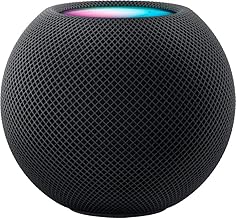
Apple HomePod Mini

Apple HomePod Mini smart speaker in black

The HomePod Mini is a compact Apple smart speaker designed to work with supported Apple services and devices.

View the HomePod Mini

Keep a Regular Phone Available

A voice assistant should not replace every other communication device.

Wi-Fi fails. Power outages happen. Accounts stop connecting. Smart speakers sometimes misunderstand commands.

Keep a reliable telephone available as a backup.

Serene Innovations Big-Button Phone

Amplified big-button landline phone with photo buttons for seniors

This amplified landline phone includes large buttons and photo buttons designed for easier calling.

View the Big-Button Phone

How Families Should Set Up a Voice Assistant

Do not plug the device in, create an account, and leave.

Complete the full setup while the senior is present.

  1. Connect the device to Wi-Fi.
  2. Install the correct phone app.
  3. Create or connect the user account.
  4. Increase speaker volume.
  5. Add important contacts.
  6. Test supported calling features.
  7. Set one reminder together.
  8. Set one timer together.
  9. Connect only the smart-home devices the senior needs.
  10. Review privacy settings.
  11. Write down five useful commands.
  12. Test the device from the senior’s normal chair or bed.
Setup Rule: Let the senior speak every command during practice. Watching someone else use the device does not build confidence.

Visit the Stay Connected Guide for more help with video calling, messaging, and family communication.

Useful Voice Commands for Seniors

Reminders

“Remind me to take my evening medication at 7:00.”

“Remind me to call my son tomorrow morning.”

Timers

“Set a timer for 15 minutes.”

“Set a laundry timer for 45 minutes.”

Communication

“Call my daughter.”

“Start a video call with my family.”

Information

“What is the weather today?”

“What time is it?”

“Spell the word appointment.”

Smart-Home Control

“Turn on the bedroom light.”

“Turn off the living room lamp.”

Entertainment

“Play relaxing music.”

“Play my favorite radio station.”

Privacy and Safety Rules

  • Review microphone and camera controls.
  • Use a strong account password.
  • Turn on two-step verification when supported.
  • Review who can call or connect to the device.
  • Do not store banking passwords in voice notes.
  • Do not use a voice assistant to share security codes.
  • Remove former caregivers from connected accounts.
  • Review saved recordings and privacy settings.
  • Place smart displays away from private areas.
  • Teach the senior how to mute the microphone.
Emergency Warning: A voice assistant is not a complete medical alert system. Keep emergency contacts, a working phone, and appropriate alert equipment available.

Voice Assistant Comparison Worksheet

Senior Information

Senior’s name: ____________________________________

Current phone: iPhone / Android / Basic Phone

Current online account: Amazon / Google / Apple / Other

Hearing concerns: Yes / No

Vision concerns: Yes / No

Lives alone: Yes / No

Main Goals

Video calling: Yes / No

Medication reminders: Yes / No

Music and radio: Yes / No

Smart-light control: Yes / No

Weather and information: Yes / No

Family photo display: Yes / No

Product Comparison

Product name: _____________________________________

Purchase price: ___________________________________

Screen included: Yes / No

Smartphone app required: Yes / No

Wi-Fi required: Yes / No

Video calling supported: Yes / No

Works with current phone system: Yes / No

Senior understands basic commands: Yes / No

Family Support

Person responsible for setup: ______________________

Person responsible for updates: ____________________

Backup telephone available: Yes / No

Privacy settings reviewed: Yes / No

Return deadline: __________________________________

Final decision: Buy / Compare More / Do Not Buy

Frequently Asked Questions

What is the easiest voice assistant for a senior?

The easiest choice is usually the one that matches the senior’s existing phone, accounts, and family support system.

Is a smart display better than a smart speaker?

A display is better for video calls, photos, clocks, and visual reminders. A speaker-only device is smaller and simpler.

Do voice assistants work without Wi-Fi?

Most smart speakers and smart displays require an internet connection for their main features.

Can a voice assistant remind a senior to take medication?

It can provide scheduled reminders. A reminder does not confirm whether the medication was taken.

Can a senior use a voice assistant for emergencies?

Some supported systems offer calling or emergency-related features. Families should not depend on a voice assistant as the only emergency method.

Are voice assistants private?

They include microphones and connected accounts. Families should review privacy controls, account access, saved recordings, camera settings, and microphone controls.

Where should a voice assistant be placed?

Place it where the senior spends time and where the device can hear commands clearly. Avoid bathrooms and other private areas.

Final Thoughts

Voice assistants help seniors living alone stay connected, manage routines, control compatible devices, and access everyday information.

The best device depends on the senior’s existing phone, internet service, hearing needs, family support, and comfort with technology.

A smart display offers visual help and video calling. A smart speaker offers a simpler voice-only experience.

Families should complete the setup, test the commands, review privacy controls, and leave written instructions.

Keep a working phone and emergency plan available.

A voice assistant should make life easier. It should never become another device sitting unplugged because nobody explained how to use it.

Help Seniors Stay Connected and Independent

Visit the Stay Connected Guide for help with video calls, smartphones, tablets, messaging, family photos, and easier communication.

Open the Stay Connected Guide

The Ultimate Holiday Gift Guide for Aging Parents in 2026

The Ultimate Holiday Gift Guide for Aging Parents in 2026 "The best holiday gifts are not the ones that collect dust. They are the on...